

Command Palette

Search for a command to run...

Install Ansible AWX on Microk8s

Updated
3 min read
Install Ansible AWX on Microk8s

Since the version 18.0, you have to install AWX on Kubernetes using an AWX Operator for Kubernetes.

In the AWX installation guide on GitHub, they show an example using Minikube.

Here, we will explain you how to run AWX on an Ubuntu server using Microk8s from Canonical .

Microk8s install and setup

As AWX is now delivered as a container, we start the installation with microk8s which will be our container manager on the server.

Install microk8s using snap and setup the user permissions.

sudo snap install microk8s --classic
sudo usermod -a -G microk8s $USER
sudo chown -f -R $USER ~/.kube
microk8s status --wait-ready

Activate the features that we will need later to have a working cluster.

microk8s enable storage host-access dns rbac
microk8s start
microk8s status --wait-ready

Create an alias so you can directly use the kubectl command and not have to use the long microk8s kubectl command.

sudo snap alias microk8s.kubectl kubectl

AWX deployment on Microk8s

After installing microk8s, the goal is to install AWX as a container.

Create the AWX Operator for Kubernetes and follow the deployment logs. Replace awx-operator-f768499d-fhb9bby the name of your operator.

microk8s kubectl apply -f https://raw.githubusercontent.com/ansible/awx-operator/0.9.0/deploy/awx-operator.yaml
kubectl logs -f awx-operator-f768499d-fhb9b

Now we deploy AWX using the operator definition. In this case we will tell the operator to setup the tower_ingress_type as Ingress, with our custom URL in tower_hostname and an already created TLS secret for tower_ingress_tls_secret.

tee awxconfig.yaml<<EOF
---
apiVersion: awx.ansible.com/v1beta1
kind: AWX
metadata:
  annotations:
    kubernetes.io/ingress.class: nginx
  name: awx
  namespace: default
spec:
  tower_create_preload_data: true
  tower_hostname: awx.example.com
  tower_image_pull_policy: IfNotPresent
  tower_ingress_tls_secret: awx-example-com-tls
  tower_ingress_type: Ingress
EOF
kubectl apply -f awxconfig.yaml

Get your default admin password

kubectl get secret awx-admin-password -o jsonpath='{.data.password}' | base64 --decode

MetalLB setup

We will need MetalLB to act as the loadbalancer provided by the public cloud providers. Here is the way to install MetalLB

kubectl apply -f https://raw.githubusercontent.com/metallb/metallb/v0.9.6/manifests/namespace.yaml
kubectl apply -f https://raw.githubusercontent.com/metallb/metallb/v0.9.6/manifests/metallb.yaml
kubectl create secret generic -n metallb-system memberlist --from-literal=secretkey="$(openssl rand -base64 128)"

tee metallbconfig.yaml<<EOF
apiVersion: v1
kind: ConfigMap
metadata:
  namespace: metallb-system
  name: config
data:
  config: |
    address-pools:
    - name: default
      protocol: layer2
      addresses:
      - 192.168.1.100-192.168.1.105
EOF
kubectl apply -f metallbconfig.yaml

Ingress setup

As we have already specify the operator to use the Ingress type to access the service, we now need to setup ingress on Microk8s. First we have try to use the Microk8s add-on ingress to achieve that, but without success.

So we turned to the use of the official Nginx Ingress. Here is the way to install it.

helm repo add nginx-stable https://helm.nginx.com/stable
helm repo update
helm install ingress nginx-stable/nginx-ingress --namespace kube-system
kubectl -n kube-system get service

Edit the ingress awx-ingress created by the operator and add the annotations kubernetes.io/ingress.class: nginx to tell nginx-ingress to address this service.

kubectl edit ingress awx-ingress
annotations:
    kubectl.kubernetes.io/last-applied-configuration:……….
    kubernetes.io/ingress.class: nginx

Check that your ingress has an IP Address and a hostname

kubectl get ingress
NAME            CLASS      HOSTS             ADDRESS        PORTS     AGE
awx-ingress   <none>   awx.example.com  192.168.1.100   80, 443   5m

Now you can browse to your URL, and use the default admin password to log into your fresh AWX install!
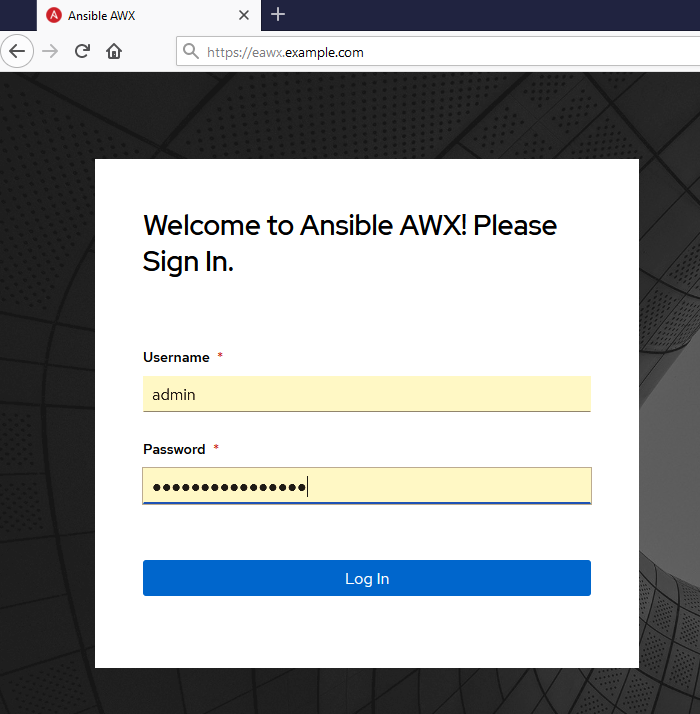
image.png

Feel free to comment this article if you have questions.

https://www.cisel.ch/cloud

References

https://github.com/ansible/awx

https://github.com/ansible/awx/blob/devel/INSTALL.md

https://kubernetes.io/blog/2019/11/26/running-kubernetes-locally-on-linux-with-microk8s/

J
jan4y ago

should I ignore the following errors?

kubectl apply -f awxconfig.yaml error: error validating "awxconfig.yaml": error validating data: [ValidationError(AWX.spec): unknown field "tower_create_preload_data" in com.ansible.awx.v1beta1.AWX.spec, ValidationError(AWX.spec): unknown field "tower_hostname" in com.ansible.awx.v1beta1.AWX.spec, ValidationError(AWX.spec): unknown field "tower_image_pull_policy" in com.ansible.awx.v1beta1.AWX.spec, ValidationError(AWX.spec): unknown field "tower_ingress_type" in com.ansible.awx.v1beta1.AWX.spec]; if you choose to ignore these errors, turn validation off with --validate=false

1
D
DINA4y ago

Hi Jan,

No you can't ignore these validation errors. Have you created the AWX operator before with the command below?

microk8s kubectl apply -f https://raw.githubusercontent.com/ansible/awx-operator/devel/deploy/awx-operator.yaml
P

CISEL

I am encountering the identical issue.

microk8s kubectl apply -f https://raw.githubusercontent.com/ansible/awx-operator/devel/deploy/awx-operator.yaml customresourcedefinition.apiextensions.k8s.io/awxs.awx.ansible.com created customresourcedefinition.apiextensions.k8s.io/awxbackups.awx.ansible.com created customresourcedefinition.apiextensions.k8s.io/awxrestores.awx.ansible.com created clusterrole.rbac.authorization.k8s.io/awx-operator created clusterrolebinding.rbac.authorization.k8s.io/awx-operator created serviceaccount/awx-operator created deployment.apps/awx-operator created

kubectl apply -f awxconfig.yaml error: error validating "awxconfig.yaml": error validating data: [ValidationError(AWX.spec): unknown field "tower_create_preload_data" in com.ansible.awx.v1beta1.AWX.spec, ValidationError(AWX.spec): unknown field "tower_hostname" in com.ansible.awx.v1beta1.AWX.spec, ValidationError(AWX.spec): unknown field "tower_image_pull_policy" in com.ansible.awx.v1beta1.AWX.spec, ValidationError(AWX.spec): unknown field "tower_ingress_tls_secret" in com.ansible.awx.v1beta1.AWX.spec, ValidationError(AWX.spec): unknown field "tower_ingress_type" in com.ansible.awx.v1beta1.AWX.spec]; if you choose to ignore these errors, turn validation off with --validate=false

D
DINA4y ago

Pete Scudamore jan Hi!

Ok I understand now... The Operatorl URL is wrong...

Sorry Guys!!!

I have edited the post with the right URL but below you will find the URL for the Operator with version 0.9.0 https://raw.githubusercontent.com/ansible/awx-operator/0.9.0/deploy/awx-operator.yaml

The TAG version was missing in the URL

1
P

CISEL

The updated awx operator path worked! I ran into another problem further down.

scud@erebor:~$ helm install ingress nginx-stable/nginx-ingress --namespace kube-system Error: Kubernetes cluster unreachable: Get "http://localhost:8080/version?timeout=32s": dial tcp 127.0.0.1:8080: connect: connection refused

Here is what my pod networking looks like after getting to this part of the install: kubectl get pod -o wide NAME READY STATUS RESTARTS AGE IP NODE NOMINATED NODE READINESS GATES awx-operator-5595d6fc57-jfqvh 1/1 Running 0 10m 10.1.5.4 erebor <none> <none> awx-postgres-0 1/1 Running 0 7m18s 10.1.5.5 erebor <none> <none> awx-5b58db49c-j6gxc 4/4 Running 0 7m9s 10.1.5.6 erebor <none> <none>

I was wondering if I was supposed to change any of the IP addressing in the MetalLB section. I am not sure how the 192.x addressing is relevant, and if it is related to this issue.

netstat -an |grep 8080 tcp 0 0 10.0.1.1:51778 10.1.5.2:8080 TIME_WAIT

D
DINA4y ago

Pete Scudamore It seems that the Helm client is unable to connect to the Kubernetes cluster API. What happens if you simply run the helm list command? It should return

~$ helm list
NAME NAMESPACE REVISION UPDATED STATUS CHART APP VERSION

The Pods seem to be correct, here is what our test environment looks like. (Sorry but I can't actually upload the image on Hashnode, it failed each time...)

xxxxxxx@CISEL-CG92373NY:~$ kubectl get pods
NAME                            READY   STATUS    RESTARTS   AGE
awx-operator-5595d6fc57-wrgq4   1/1     Running   3          39d
awx-79d94fd5fb-slp59            4/4     Running   12         39d
awx-postgres-0                  1/1     Running   3          39d
xxxxxxx@CISEL-CG92373NY:~$ kubectl get pod -o wide
NAME                            READY   STATUS    RESTARTS   AGE   IP            NODE         NOMINATED NODE   READINESS GATES
awx-operator-5595d6fc57-wrgq4   1/1     Running   3          39d   10.1.130.15   xxxxxxx   <none>           <none>
awx-79d94fd5fb-slp59            4/4     Running   12         39d   10.1.130.6    xxxxxxx   <none>           <none>
awx-postgres-0                  1/1     Running   3          39d   10.1.130.9    xxxxxxx   <none>           <none>
xxxxxxx@CISEL-CG92373NY:~$ kubectl get service
NAME                   TYPE        CLUSTER-IP       EXTERNAL-IP   PORT(S)             AGE
kubernetes             ClusterIP   10.152.183.1     <none>        443/TCP             62d
awx-operator-metrics   ClusterIP   10.152.183.241   <none>        8383/TCP,8686/TCP   39d
awx-postgres           ClusterIP   None             <none>        5432/TCP            39d
awx-service            NodePort    10.152.183.120   <none>        80:31298/TCP        39d
xxxxxxx@CISEL-CG92373NY:~$ kubectl get ingress
NAME          CLASS    HOSTS                     ADDRESS         PORTS     AGE
awx-ingress   <none>   xxxxxxx.cisel.ch   172.20.11.159   80, 443   62d

And MetalLB config

xxxxxxx@CISEL-CG92373NY:~$ kubectl -n metallb-system describe cm config
Name:         config
Namespace:    metallb-system
Labels:       <none>
Annotations:  <none>

Data
====
config:
----
address-pools:
- name: default
  protocol: layer2
  addresses:
  - 172.20.11.159-172.20.11.162

Events:  <none>
xxxxxxx@CISEL-CG92373NY:~$

As for the IP range in MetalLB, you need to use the same subnet as your server or workstation.

P

CISEL

I got everything going. I had to install helm. I also had to add a command to get helm to see the kubernetes cluster properly.

kubectl config view --raw >~/.kube/config # fix to helm cant find cluster issue

Thanks for the great article!

1

More from this blog

D

DINA DevOps Technical's Blog

59 posts